What is “Hermes”?

Hermes is a web application we developed internally to get more functionality out of the CurrentRMS software we use to manage equipment rental. CurrentRMS system designers make a robust API system available to users to customise system functionality.

Hermes was a Greek god, carrying messages between gods.

Hermes has a range of features that are added to several times a year. Some of the main features include;

  • Equipment list import (typically used for cables and rigging equipment)
  • Discussions creator (used to create a set of Discussion topics on Jobs, so there is a logical place to store notes)
  • Quarantine Intake (so detailed data about faulty equipment can be logged)

Each MPH employee has a user-account on Hermes, and users can reset their own password as necessary. Not all Hermes users have access to all Hermes functions – this is allocated on a needs basis, decided by department Managers.

Hermes is accessible via https://hermes.mphaus.com/. Hermes users also have access to the Hermes Guide (on OneDrive) which has more detailed information about each function.

How should I resign?

How should I resign?
The company recognises that working at MPH may not be for everyone’s whole career. People who wish to explore other employment options are encouraged to do so, to develop their skills and enjoy new experiences.

If you wish to resign your role from your role at MPH, here’s what to do!

Casual employees
Let your manager know when you want your last shift to be. At least one month’s notice is preferred (and more notice is better), but advance notice is not required to be given.

At the very least, it’s polite to work out the shifts you have already been booked for.

Let the manager know if you want to be contacted for future work (that is, given the option to refuse), or if you do not wish to be contacted any more – they will respect your preference.

This can happen in person, or by email but clearly and by-email is preferred.

Full-time employees
Full-time employees are required to provide “notice” of their intent to resign, for example.

Alex wants to resign today, but their contract indicates 3 weeks notice is required. Alex provides their resignation letter to their manager, where they indicate their last day as being 3 weeks from today.

Clause 17 in your employment contract indicates how much notice you are obliged to provide the company (for most roles, it varies by length of service, but there can be other factors).

If you do not have a copy of your employment contract, ask the Payroll Officer (payroll@mphaus.com) for a copy; they will provide it promptly.

The resignation letter must be submitted on paper or by email. The content of the letter can be simple, for example;

24 June 2024

Dear Jane,

I am resigning my role at MPH. Per my contract, I understand I need to provide three weeks’ notice, so my last day will be 15 July 2024.

Thankyou for the opportunities you have provided.

Sincerely, Alex.

A resignation letter is not the place to list grievances or provide detailed reasoning, but feedback around your decision to leave is certainly helpful. This can be emailed to your manager or the owner separately, or shared in a face-to-face meeting.

Clause 17 in your contract outlines what happens next, including return of company property, your working obligations in the notice period, how your final pay is calculated, and how confidential information must be handled. Your manager can provide more guidance if you have questions.

Let you manager know how you’d like your departure to be announced and when (though, your manager may need to make the announcement sooner, if they need to start recruiting your replacement), and how you’d like to leave on your last day.

On or directly after your last day, your MPH system accounts will be deleted, so be sure to collect any personal information from company computers.

—
End

How should I use the responses in Chklsty?

Marking off items in Chklsty
Each DWM has an associated checklist in our online checklisting platform Chklsty. A checklist in Chklsty is started at the start of each period. For example,

The Warehouse Manager starts the “Warehouse Manager Weekly” checklist on Monday morning. The checklist remains open in a tab on their browser. Their Daily checklist also has a prompt to advance the weekly checklist.

On Friday afternoon, the Warehouse Manager responds to each task indicating they have done each one, and submits the checklist. They attach the PDF to their Weekly Report (an email about what happened in the department that week).

When using checklists in the Chklsty app, each checklist item can be marked in one of three ways;

✅ means, this task is totally complete
Only mark an item is done when it is complete to the nominated standards in the associated Process document and, where applicable, the written Standard is met.

Never mark an item off as being complete before actually completing the work.

❌ means, I cannot or I will not do this task
This is used if the task should have been done but was not able to be done. It’s rare an item is marked as ❌, and we aim for it to never happen. But if it does, this is how we record it. 

Perhaps equipment was found to be faulty, or a key person was unavailable, instructions were unclear, or a safety issue prevented it, or time ran out.

The reason for the task not being done must be defined in the associated report, so the manager understands the context. 

“NA” means, this item is not applicable
This is used when the task is not applicable to this instance of this process.

Perhaps it only applies some of the time, it’s redundant in this specific case, or it was already done as part of some other process. Checklist items marked as NA do not require explanation.

Something that should have been done but was not done because the incumbent “ran out of time” is never marked as “NA” – in fact, that task was applicable, but there was not time to complete it! An ❌ mark applies in that situation.

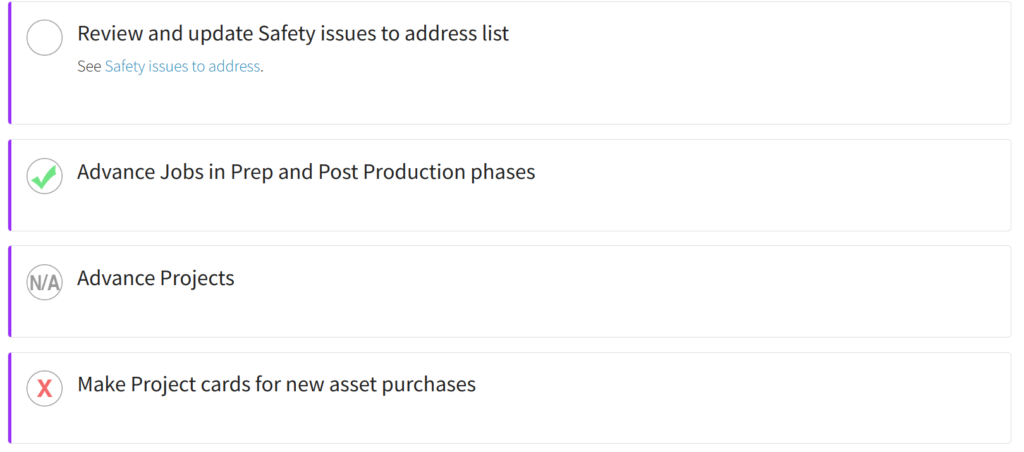
ABOVE: A range of checklist responses from the Warehouse Manager Daily checklist. the “N/A” response would only be appropriate if there were no projects to advance. If no work was done on Projects today, a red X would be appropriate.

—
End

What is a Position Description?

A Position Description (PD) defines the responsibilities of a person’s role at the company.

Each role in the company has a PD (or is due to have one created), and all PDs are available for all fulltime staff to read in the 📂 Position Descriptions folder on OneDrive.

PDs tend to be written to be highly “abstracted” (dealing with ideas rather than tasks), and to refer to systems and processes in the business – they don’t have a lot of detail about the day to day minutiae. For example;

In the Warehouse Technician PD, there’s a Key Result Area called “Maintain equipment”.

The specification for this is “Test and maintain lighting production equipment to established standards and de-prep processes (for example, moving lights, truss sections, cabling).”

This is what Warehouse Technicians spend perhaps 80% of their time doing, but it’s a brief statement in the PD that covers a lot of work! That’s typical of most PDs: broad inclusive statements.

PDs aim to make it clear what a person is responsible for in their role, and is part of MPH’s Clear Expectations approach: it’s a fundamental principle of how MPH works that everyone knows what it is they are supposed to do at work.

One person may be on several Position Descriptions concurrently. For example;

Bill the Warehouse Technician is on the Warehouse Technician PD… but they are also on the Stocktaker PD.

The Warehouse Technician PD applies day to day, but when there is a stocktaking task assigned, the Stocktaker PD applies.

Sometimes, a single PD will apply to all the work the employee does in their role (for example, the Bookkeeper). Other employees may be on several PDs (for example, Lighting Technicians, depending on the roles they are assigned on a given Job).

Often, several people will be on the same PD (for example, Warehouse Technicians; Lighting Technicians).

In addition to setting clear expectations for existing employees, PDs are also used in a few other ways in the business;

To create ads for recruiting new employees;

  • Shown to prospective employees to help them understand what the role entails;
  • During Performance Reviews, to compare actual performance against expectations;
  • To have discussions around who should be responsible for a new Thing.

PDs are updated occasionally (typically, once a year or less), and employees working on a given PD are always notified of changes. Suggestions from employees to revise PDs (their own, or others’) are always welcome – make them to the Managing Director and Business Development Manager.

New PDs are made regularly, sometimes to help us think about how a new role would fit in or to help estimate how much a “theoretical” new employee might cost the business. Sometimes, a role is “split” in two, or we realise more “granular” role definitions are required (perhaps based on employee experience). In May 2024, not all roles have PDs defined, so new PDs are being made to improve the “coverage” as well. 

Layout of Position Descriptions

Each PD is laid out in the same way, in a series of sections.

Role info
Basic info about this role, including the official name of the role, who people in this role report to, and the expected working hours.

Role purpose
A concise statement that summarises the main “reason” MPH has this role in the business.

Role expectations
Role expectations are further divided into Requirements (non-negotiable requirements people being considered for this role must meet), Expectations (things the company expects people in this role to have, but are not necessarily required), and Licences and certifications (and qualifications – these are required for the role).

Some of these items link to established MPH standards.

Key Responsibility Areas
The main part of a PD, KRAs are the role duties. Board inclusive terms are typically used (details are typically stored in Process and Standards documents).

Key Performance Indicators
KPIs help employees and managers assess their work. KPIs are usually measurable, numeric and unequivocally assessable. For example;

✅ Established Standards met

❌ Did a good job each day

In the example above, “Established Standards met”, established Standards must exist, be available to the employee, and the employee needs to have had the option to have input on the standards so they are sure to be fair and appropriate. Clear expectations.

“Did a good job each day” is not a good KPI, because it’s impossible to measure and is open to interpretation. What’s a “good job”? Your interpretation may be different to your manager’s, and that can cause confusion (the opposite of what KPIs should do!).

Signature block
Employees are bound to complete reasonable tasks assigned by the company, but signing a PD makes the expectations even clearer and more official. The goal is to weed out “wiggle room” here, not to be vague.

What is a DWM for a role?

“DWM” stands for Daily, Weekly, Monthly. It’s a type of process document we use at MPH. 

A role-based DWM (for example, “Bookkeeper DWM”) describes all the things that role is required to do each day, each week and each month (sometimes, each quarter and year). They describe recurring tasks, things we know have to be done periodically. For example, the Bookkeeper Weekly DWM specifies all staff are to be paid on Thursdays (best that one’s not accidentally forgotten, right? 👍🏼).

Many manager and administrator roles (and some other roles) in the business have a DWM process document. Each DWM has an associated online checklist that is completed and submitted each day, week and month.

The DWM system improve accountability and helps the business runs smoothly by;

  • Set clear expectations for people
  • Ensuring the incumbent does not forget things the business needs
  • Helping others “stand in” for a role when the incumbent is away
  • Help communicate what’s not being done (if anything), so it can be discussed and resolved
  • Help hand over a role from one person to another
  • Provide visibility into what people’s responsibilities are (any fulltime staff can read anyone else’s DWM)
  • Act as a reference to discuss how a Thing should work

A DWM has two “versions”:

(1) The Process doc, which sets out the “what”, “why” and “how”. Each task in a DWM is organised in the same way: What, Why and How.

The “What” is the title of the section (for example, “Assess shelving needs”). The “Why” is a paragraph or two that provides rationale as to why this is important to the business. This provides context and allows the user to be more autonomous in their role (that means, able to solve problems on their own). The “How” describes how this task is expected to be completed. Step 1, Step 2, Step 3…

DWM process docs are often dozens of pages long. After an initial read-through, it serves as a reference guide, when the incumbent needs more guidance on a specific task as prompted by the associated checklist. 

(2) The checklist, which sets out the task titles only, matching the DWM process doc. The checklist is used each period (day, week, month), and submitted (usually via email in PDF form) to the incumbent’s manager. Checklists are stored in Chklsty, our online checklisting app.

The DWM process doc and checklist are manually kept in sync – a change in one is always made in the other.

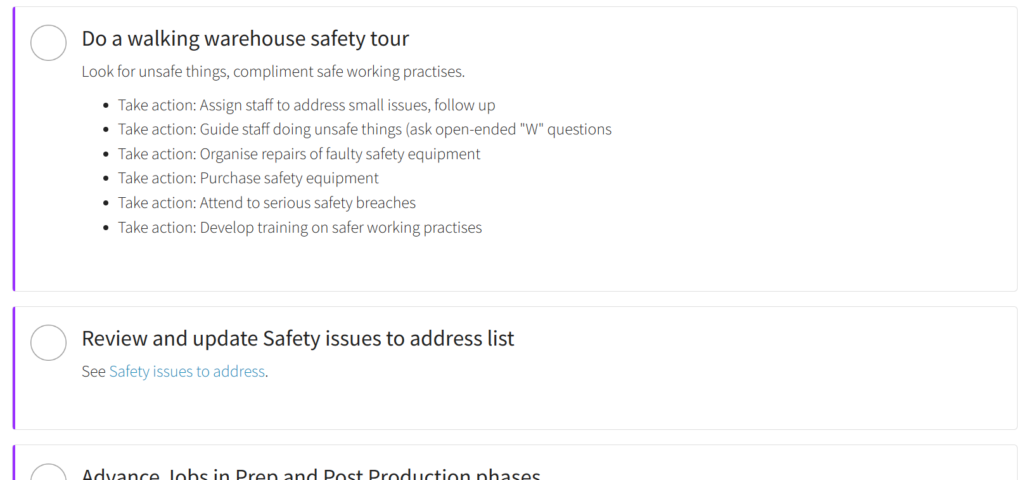
ABOVE: Example from the DWM Warehouse Manager Daily checklist. Minor prompts are added.


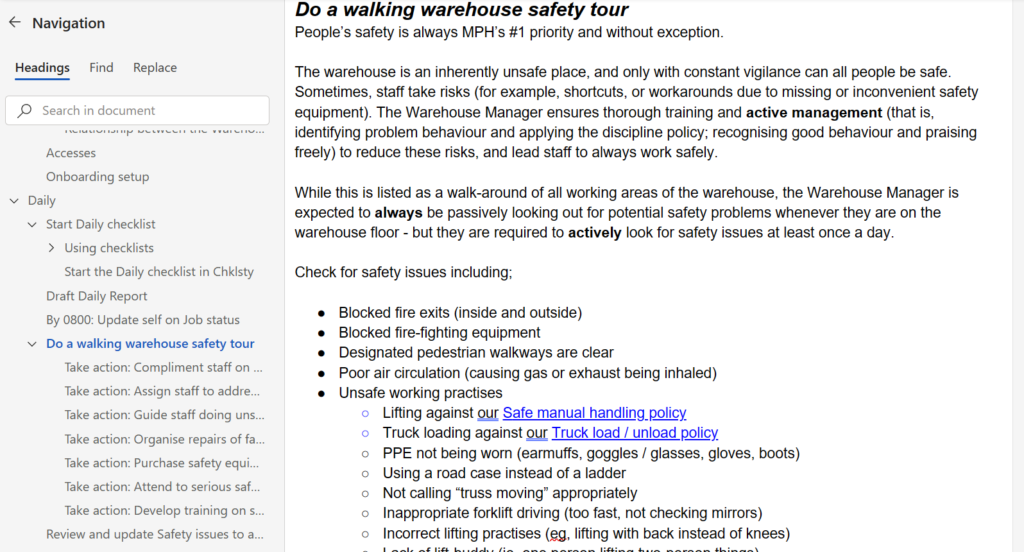
ABOVE: Part of the DWM Warehouse Manager Daily process doc for the same task – much more detail (only part of this section is shown).

Where DWMs are stored
DWM checklists are stored in Chklsty.

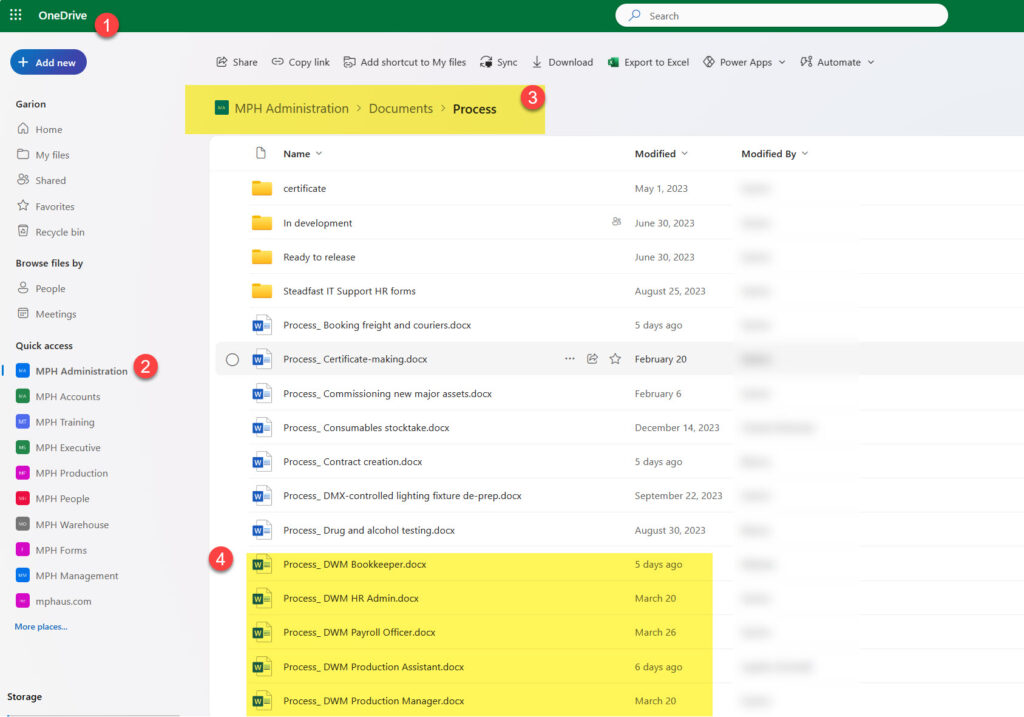
DWM process docs are stored in the Process folder in MPH OneDrive. The files for all roles are prefixed with “Process_ DWM” so they are easy to find all grouped together. Note that all full-time staff have access to these documents, but casuals do not by default. 

ABOVE: The location of DWMs on MPH OneDrive > MPH Administration > Documents > Process.

Example of a DWM
The Warehouse Manager has a DWM. Some example daily tasks include;

  • Do a walking warehouse safety tour
  • Administer waste
  • Prepare Warehouse whiteboard for the next working day

There are many other items, this is just a small sample. These are tasks the Warehouse Manager is required to do each working day – they’re part of the role.

Some example weekly tasks for the Warehouse Manager include:

  • Publish Warehouse department roster
  • Audit vehicle logbook
  • Meet with staff one-on-one

Some example monthly tasks for the Warehouse Manager include;

  • Clean cobwebs in warehouse
  • Assess shelving needs
  • Do visual safety inspection of vehicles

Sometimes, items in a DWM have a process defined right in the DWM. More complex things might be linked to separate process documents. For example, each day, the Warehouse Manager is prompted to work on Commissioning new assets (the company often purchases new assets, and it can take weeks for an asset to be commissioned). There’s around 90 steps to commissioning a new asset, so that’s in a separate document, linked from the Warehouse Manager DWM.

How DWMs are created
DWMs are created when there are duties the company recognises need to done on a recurring basis. The appropriate role is considered and selected. Some DWMs will start with just a few tasks listed, and gradually be built over time (typically, with a lot of input from the incumbent themselves). Sometimes, a fully-formed DWM will be created and presented to the employee for their review and testing.

Either way, DWMs are “living documents” – they should be regularly updated by the incumbent (using Tracking and Comments) to reflect the reality in the business. Removing tasks can only be done with Manager approval, however.

See also How should I use the responses in Chklsty?

—
End

How can I get IT Support from Steadfast?

Almost all of our IT Support is outsourced to Steadfast IT, a Melbourne-based company.

What Steadfast can help with

Steadfast know a lot about how our systems work, and can solve most IT problems, including;

  • Logging on to Office365 and accessing folders, files and applications (from any device)
  • Support with Outlook, Word, Excel, PowerPoint, Planner not working how it should (on any device)
  • Problems with emails not working as expected (on any device)
  • Office365 app functionality (on any device)
  • MPH-owned computer hardware not working right (laptops, NUCs, desktops; peripherals and accessories)
  • Logging on to the Operating System on MPH-owned computers
  • “Weird” browser behaviour (on MPH-owned computers)
  • Apps not working right on MPH computers
  • Installing new apps on MPH computers
  • Accessing the internet and printers at MPH HQ

What Steadfast cannot help with

There are a few things Steadfast cannot help with;

  • Computer hardware problems for non-MPH IT equipment (eg, personal laptops or smartphones)
    • These need to be solved by your own IT advisor
  • CurrentRMS, Xero, Wysiwyg, and similar industry-specific software issues
    • Contact the support department for the software providers (if the software is paid, our payment includes customer support for all users)
  • Internet connection when working from home
    • Contact your ISP
  • Doors and gates access control at MPH

To contact Steadfast

Steadfast are available to support you between business hours on;

Phone: 1300 739 335

Email: support@steadfastsolutions.com.au

Calling Steadfast will always ensure a faster resolution than by email.

How can I get IT Support for the security system, gates and doors? (PCC)

Our security camera system, gates and doors with e-locks are administered by PCC Event Services. 

PCC can help with the following issues;

  • Gate or door e-lock not working as expected / as it usually does
  • PINs to unlock gates not working as expected
  • How to grant access to users
  • System configuration

PCC cannot help with some things, however;

  • Actually granting access to users for gates, door e-locks or security cameras
    • This is done by the company’s executive officers only. 

PCC can be contacted during business hours on 1300 637 376 (1300 NERDS NOW), or via the form on their site https://www.persiancatsandcarpets.com.au/contact.